
Itineraries
Days And Stops
Add days, add places to each day and put them in order.
Each itinerary is a list of days, and each day holds stops: the places you'll go.
Add A Day
In edit mode, tap Add Day. Use Move Day Up and Move Day Down to reorder days, or delete a day and every stop in it.
Add A Stop
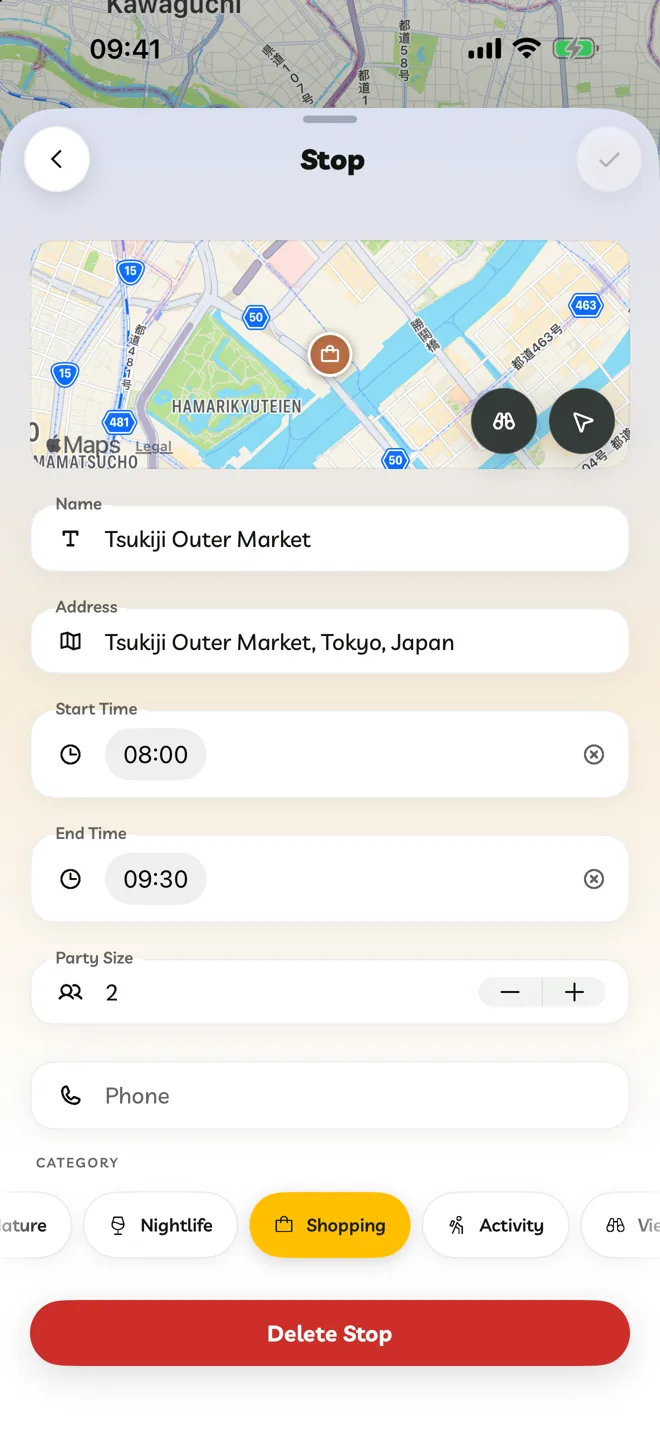
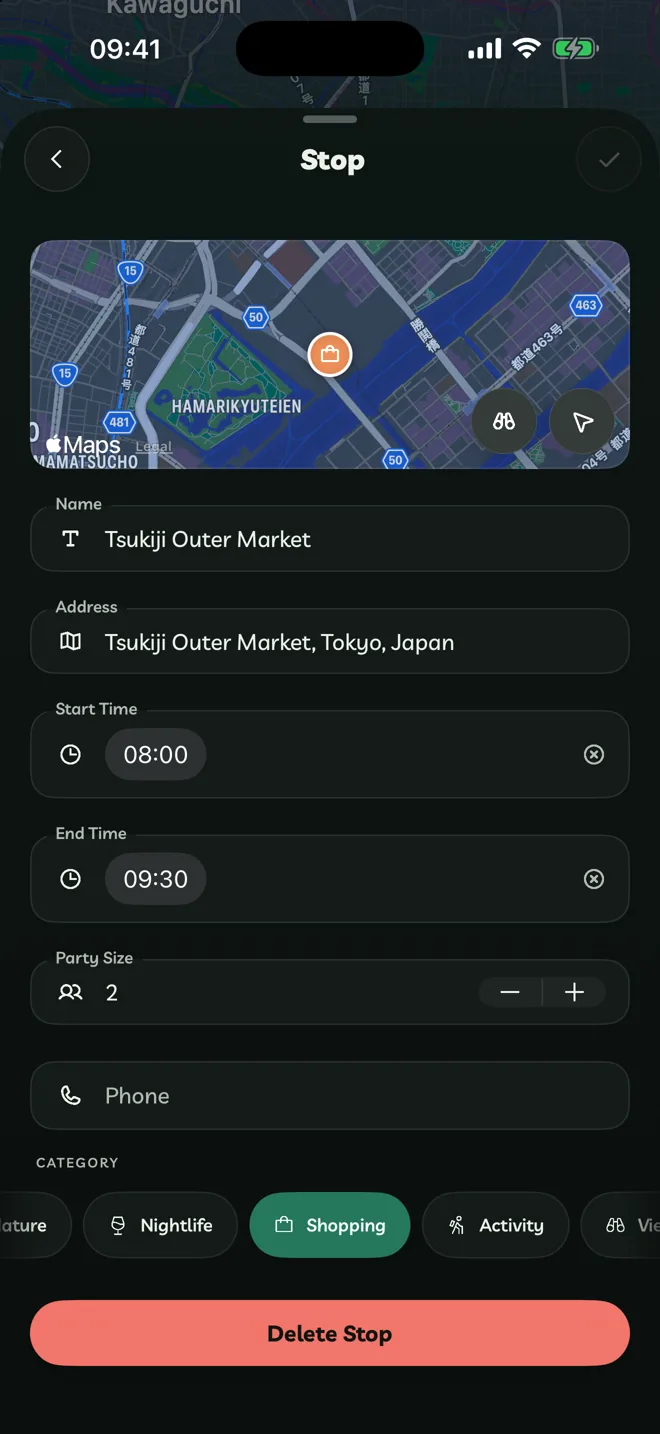
Open a day and tap + → Add Stop.
Search for the place. If it isn't found, tap Add Manually.
Set a Start Time and End Time if you like, a Party Size, a Phone number and a Category.
Categories are Beach, Landmark, Restaurant, Café, Hotel, Museum, Nature, Nightlife, Shopping, Activity, Viewpoint and Transport.
Reorder And Delete
In edit mode, drag stops to reorder them (with VoiceOver, double tap and hold, then drag). Open a stop and tap Delete Stop to remove it.
Extras On Each Stop
- Get Directions opens the stop in Apple Maps or Google Maps.
- Look Around shows street-level imagery where Apple has it.
- Opening hours: Travelyfe warns you when a stop is closed on the day you planned it, or permanently closed.
- Between stops, choose how you travel: Walk, Drive, Transit or Bike.